Create Interactive Worlds with Genie 4
Write a world. Add a character. Set the camera, sound and interaction. Use the brief in Project Genie when your access is ready.
- Real-time steering
- Native audio
- Physics and action
- Interactive dialogue
Plan the world before you open the model
Fill in the left panel. The page builds one copyable prompt. Nothing is uploaded or submitted.
Know what each part does
Genie 4 is a world model. Gemini models help plan, observe and steer. Image and video models solve different jobs.
Genie 4
Real-time worlds with visual scenes, movement, sound and dialogue.
Project Genie
Build, explore and remix worlds from text and image inputs.
Gemini Omni
Helps anchor appearance and behavior inside a simulation.
Gemini 4 Argon
Breaks complex tasks into steps that a world can simulate.
Gemini 3.8 Flash
Tracks goals, reviews frames and adapts a plan while a world changes.
SIMA 2
Learns and acts inside varied interactive 3D environments.
Gemini Robotics
Connects reasoning with physical tasks and robot behavior.
Veo
Creates linear video clips rather than a navigable live world.
Imagen
Creates a reference frame that can help define a world concept.
Nano Banana Pro
Refines a reference image before it becomes a world input.
Genie 3
Introduced real-time navigation from a text description.
Genie 2
Expanded generated environments from 2D into richer 3D spaces.
Genie 1
Learned action-controllable environments from unlabeled videos.
World prompt
Defines the place, weather, time, materials and visual rules.
Character prompt
Defines who moves, how they look and what they can do.
Reference image
Sets composition, subject details, style or a starting frame.
Camera control
Moves through the generated scene with standard controls.
Text steering
Changes weather, camera, people or objects while the world runs.
Native audio
Generates ambience, physical sounds, music-like sound and dialogue.
Interactive dialogue
Lets characters speak and react to current events.
Physics simulation
Models motion, collision, materials and other physical changes.
SynthID
Adds an imperceptible watermark to generated video and audio.
Safety controls
Limits unsafe or malicious requests in the research preview.
Trusted preview
Starts with approved testers and selected early access users.
Study one movement at a time
These existing clips are visual references. They are not presented as Genie 4 outputs.

Open-world camera
Keep the route readable while the camera moves forward.
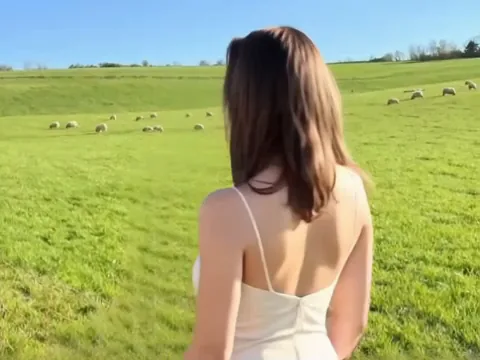
Reference motion
Use a clear starting frame and one visible movement.
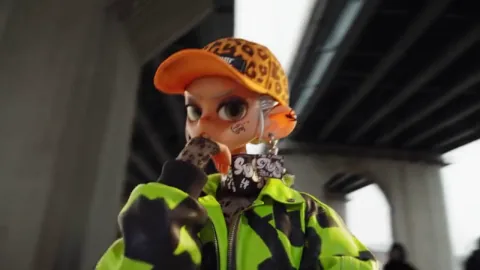
Character focus
Keep the character large enough to track during motion.
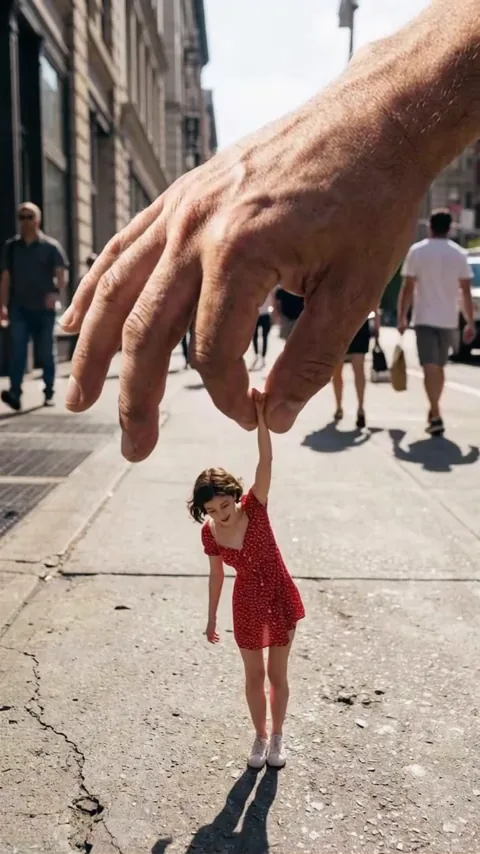
Scale shift
Test how scale changes affect contact and movement.
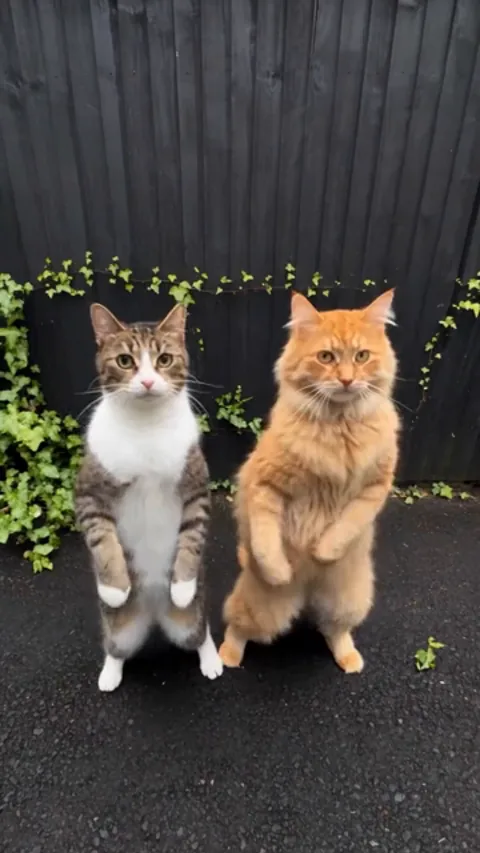
Animal behavior
Describe stance, response and nearby objects.
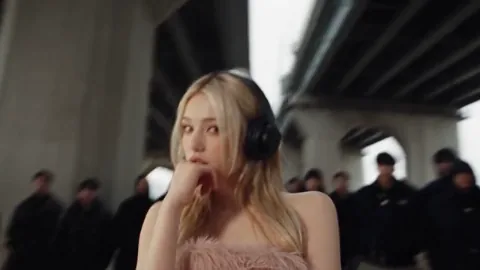
Crowd continuity
Keep foreground action clear when the background is busy.
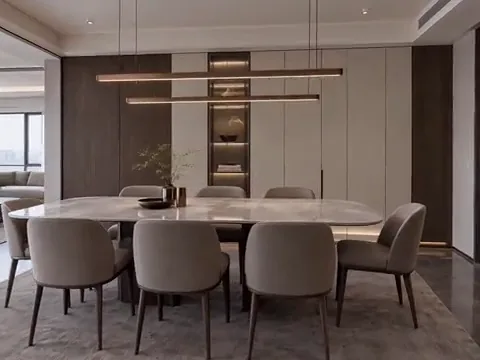
Interior lighting
Name the light source and the change you want to see.
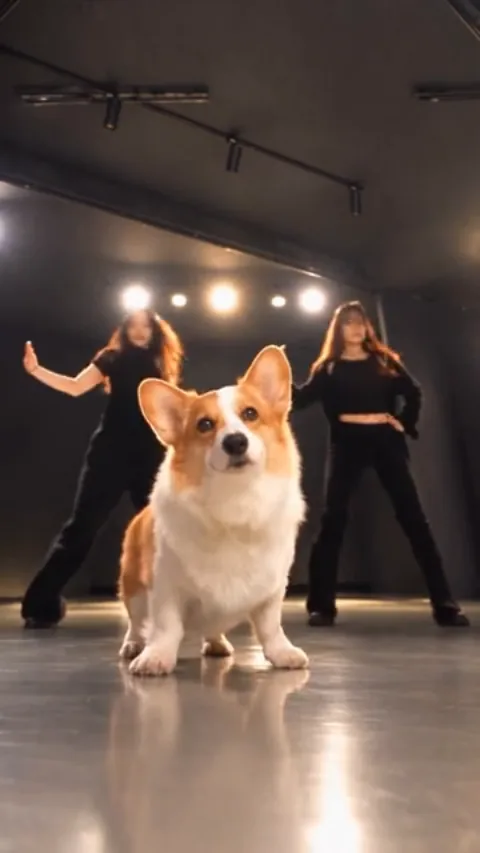
Performance beat
Write the action in a short start, middle and end sequence.
Build, steer and review
Keep each stage separate. You will find errors faster.
Build the world
Write the location, time, weather, materials and physical rules. Keep the first version simple enough to test.
Define a navigable environmentAdd one clear character
Describe appearance, position, movement and response. Avoid adding several unrelated actions at once.
Place a character inside the sceneSteer one change at a time
Change the camera, weather, object or event separately. Check the result before adding another change.
Modify a running worldReview continuity and sound
Check object permanence, text, spatial logic, dialogue and ambience. Regenerate or simplify weak parts.
Inspect the full simulationUse the right checklist for the job
Each card names one practical planning task. Four pages. Eight cards per page.
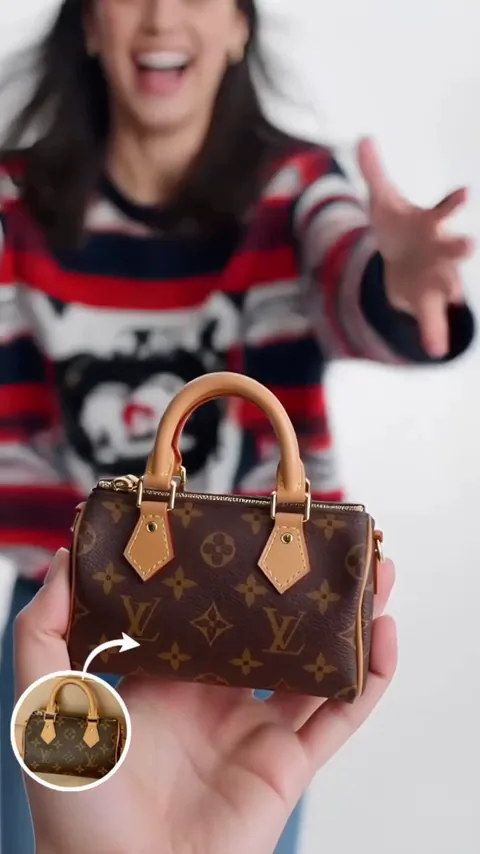

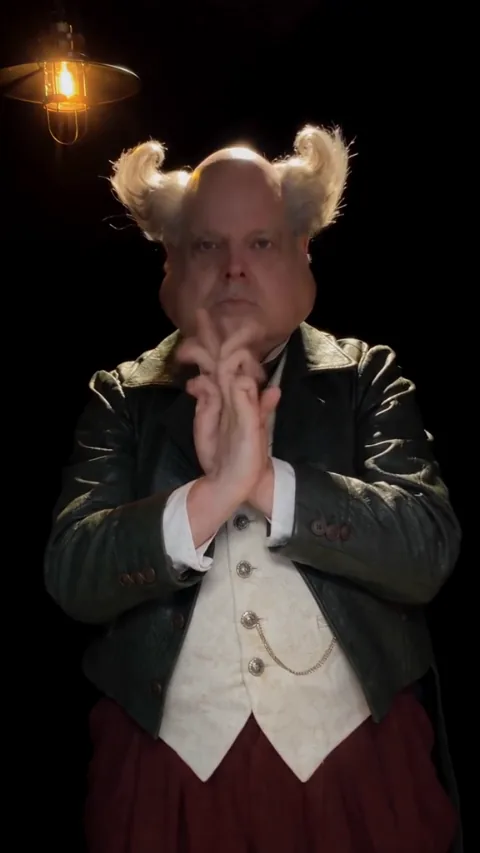
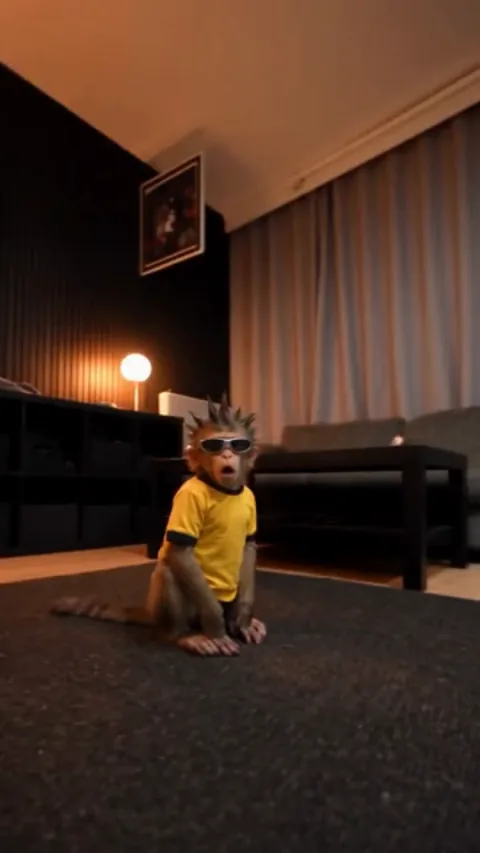
Real-time text steering
Change the weather, camera, people or objects while the simulation is running. Make one change, inspect it, then continue.
- Write the change in plain language
- Keep the subject and location stable
- Watch for continuity drift
Physics and human action
Describe a physical event with a clear start and result. Genie 4 can simulate motion, collision and human response, but complex contact can still fail.
- Name the objects involved
- State the direction and force
- Check hands, feet and contact points
Native sound and dialogue
Plan ambience, physical sounds and speech as separate layers. Specify who speaks, what triggers the line and what should stay quiet.
- List the ambient sound
- Add one physical sound
- Write short reactive dialogue
Reasoned multi-step events
For a longer task, split the goal into steps. A guiding Gemini model can observe progress, check a step and adjust the plan.
- Use one result per step
- Add a visible success condition
- Stop when the world drifts
Go from idea to test
Do not start with a long prompt. Add detail after the first world works.
- 01
Choose one world
Pick one place, one time and one visual style.
- 02
Add the main actor
Describe one character, vehicle or object that leads the scene.
- 03
Set movement and sound
Write the camera path, physical action, ambience and dialogue.
- 04
Run, steer and review
Test one change at a time. Check continuity before adding more.
Use a world model for a concrete task
Pick the result you need. Then build the smallest world that can test it.
Creative previsualization
Walk through a scene before a shoot. Test camera position, light, action and dialogue.
Game concept tests
Explore a mechanic, space or art direction before building a full prototype.
Historical scene study
Turn an approved archival reference into a navigable scene for research or teaching.
Robotics simulation
Create varied environments where an agent can practice a defined sequence of actions.
Safety training
Rehearse a rare or risky event without placing people in the real situation.
World design practice
Compare prompt versions and learn which details control the scene.
Turn a loose idea into a usable brief
Drag the handle. The left side is a vague input. The right side shows the specific scene you can plan toward.
Build the brief in three passes
Define the world
Write the place, time, weather, materials and one rule that must stay consistent.
Write the environmentCopy a complete structure
Use the structure. Replace every scene detail with your own.
Floating lake performance
Environment: A weathered concrete platform floats on a quiet lake under a pale overcast sky. Mist moves above the water. Character: A saxophone player stands beside a warm amber light. Camera: Glide slowly around the platform while preserving the tree, player and lake. Sound: Water, wind and live saxophone only.
Balloon over Antarctica
Environment: A clear polar day above glaciers, blue icebergs and distant mountains. Character view: First-person from a wicker balloon basket. Camera: Move forward slowly and allow gentle turns. Sound: Wind, burner noise and distant ice movement.
Stained-glass city
Environment: A walkable city made from colored glass panels and dark metal joints. Keep the same material rules on streets, buildings and objects. Camera: Walk at street level, turn at one corner and keep the original color palette.
Watermelon impact test
Environment: A sunlit stone courtyard with a raised plinth. Object: One whole watermelon centered on the stone. Event: Apply one clear impact from above. Camera: Hold a close side view. Sound: Outdoor ambience and the physical impact only.
What teams are testing
These are use-case summaries from the published research update, not customer ratings.
Creative teams test camera angles, lighting, dialogue and action before a full production.
Research teams explore how an environment may look and change around an archival scene.
Game teams test visual style, material choices and simple mechanics before writing code.
Engineering teams test zero-to-one scenarios and record where the model still fails.
Genie 4 FAQ
Access, inputs, interaction, sound and current research limits.
What is Genie 4?
Genie 4 is a Google DeepMind world model that generates real-time interactive simulations with visuals, movement, native audio and dialogue.
Can anyone use Genie 4 now?
Access is still rolling out. It starts with trusted testers, Google AI Ultra users in Project Genie and selected early API partners. Check the official access page for your account and country.
Does this page generate a world?
No. This page is a browser-based prompt planner and guide. It does not submit your prompt or selected image to a generation service.
What input should I write first?
Start with the environment. Name the location, time, weather, materials and one visual rule. Then add one character or main object.
Can I change a world while it runs?
Genie 4 supports real-time text steering. You can request changes to weather, camera, people, objects and events while the simulation runs.
Does Genie 4 generate sound?
Yes. Genie 4 can generate ambient sound, physical sound, music-like sound and interactive dialogue as part of the world.
How long can a world stay consistent?
Google describes current sessions as short. Details and object permanence can drift as a session runs longer or receives many complex edits.
Can it render readable text?
Text can fail or change. Put essential text in the input description and check every frame before relying on it.
Is it a game engine replacement?
No. Use it for exploration, concept work and simulation tests. A production game still needs code, systems, assets, testing and deployment.
How should I review a result?
Check identity, object permanence, physics, spatial layout, readable text, dialogue, ambient sound and whether each requested step actually happened.
Prepare the prompt here. Run the world in Project Genie.
Genie 4 access is rolling out through the research preview, Google AI Ultra and selected early API partners. Check current eligibility before you plan a production workflow.